Unpublish Feature
Summary
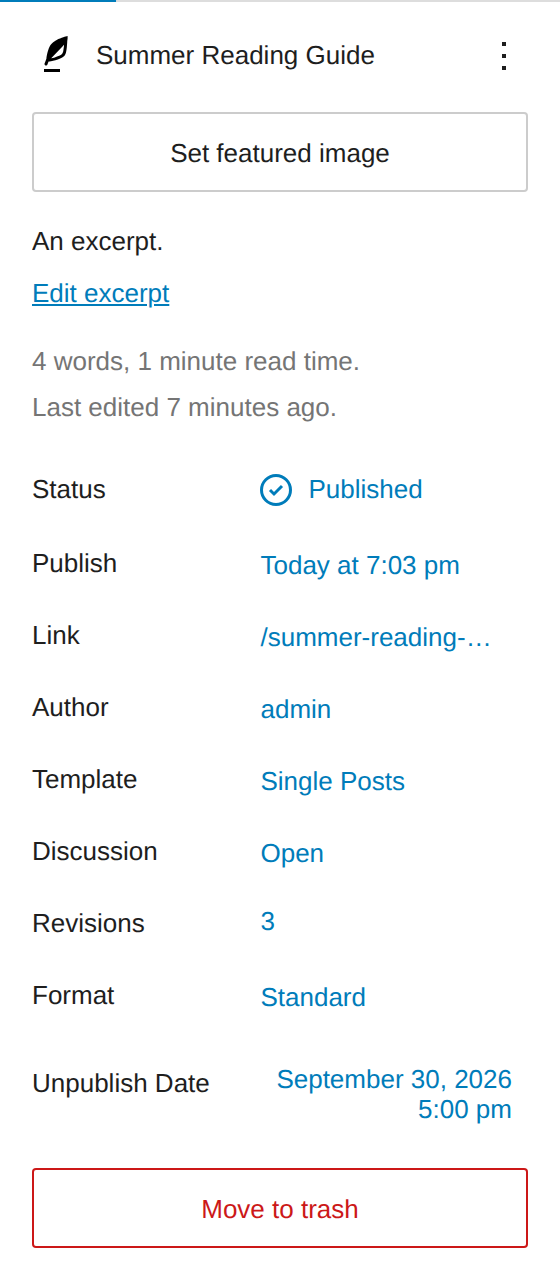
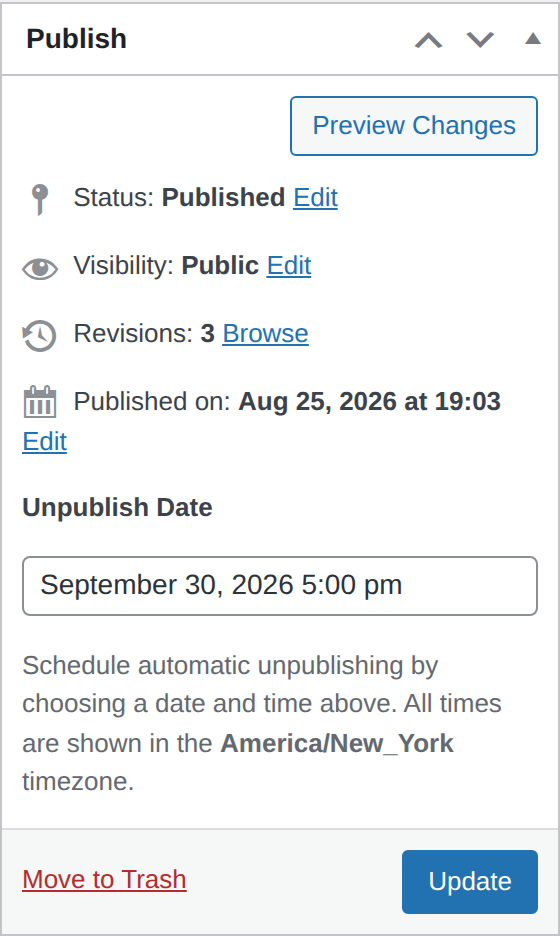
The Unpublish Feature switches a post to draft at a date and time an editor chooses. It works in the block editor and the classic editor, and in both the field lives with the post's other publishing controls.
| Surface | Block editor | Classic editor |
|---|---|---|
| Where the field is | Summary panel, under the publish date (PluginPostStatusInfo) | Publish metabox (post_submitbox_misc_actions) |
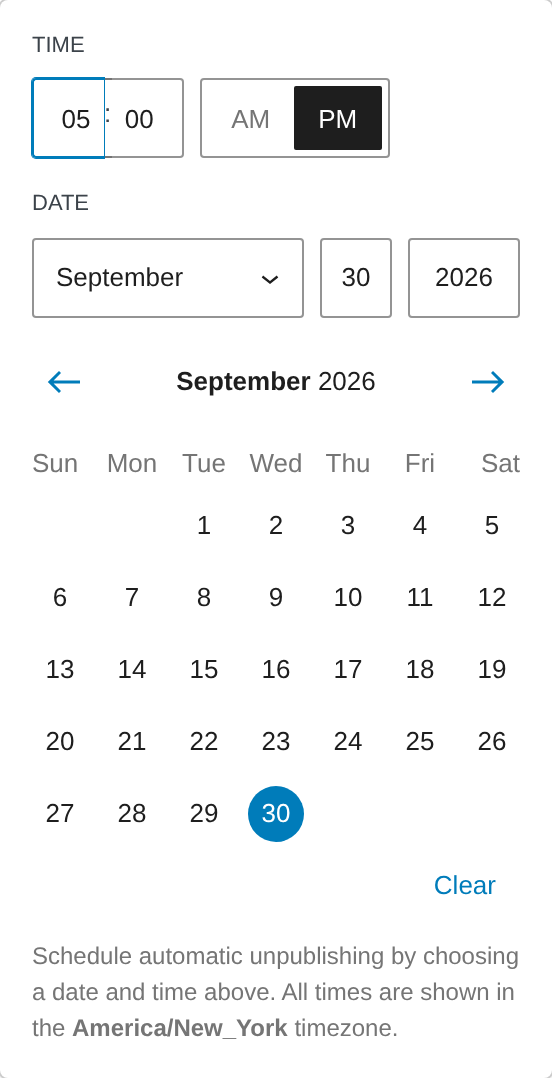
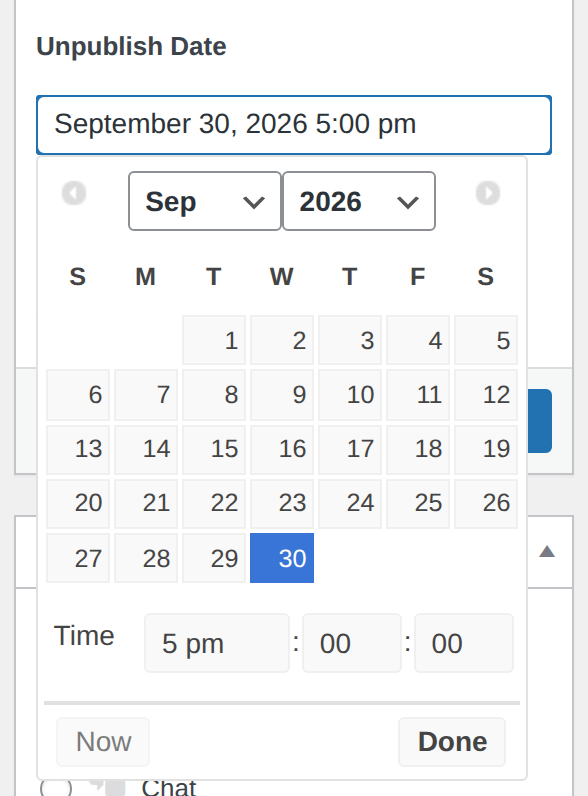
| Control | DateTimePicker in a dropdown, opened from the current value | ACF date_time_picker |
| Saved by | Post meta over the REST API | The post form, on save_post |
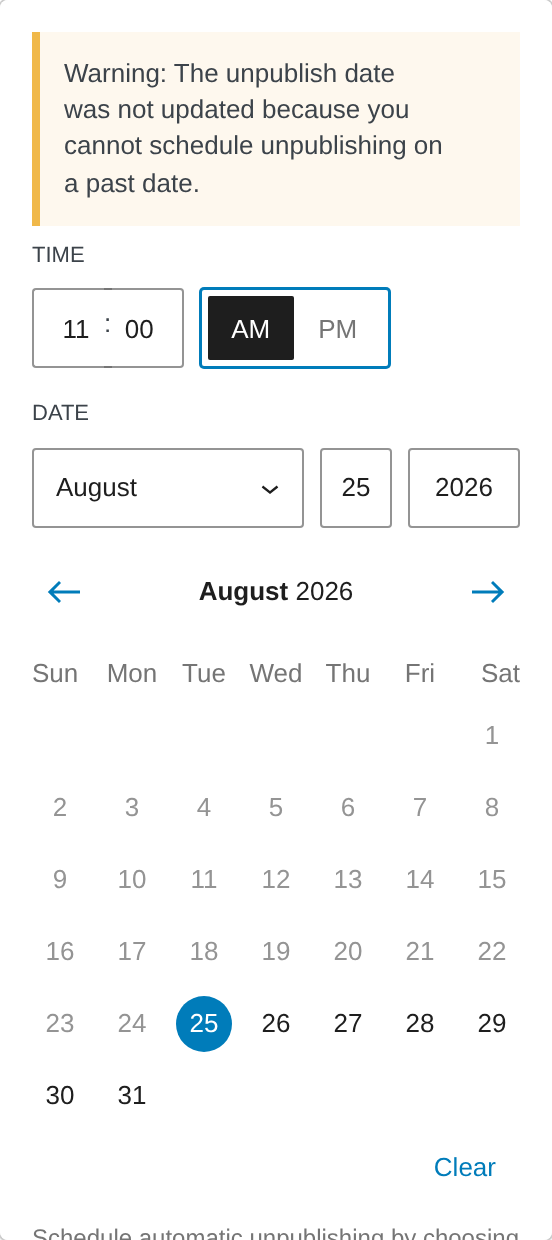
| Past date rejected | Inline warning in the panel; the picker greys out past days | Admin warning notice after the save |
| ACF "Scheduled Unpublishing" metabox | Hidden — the Summary panel is the one control | Shown below the content, as ACF renders any field group |
Both editors store the same unpublish_date post meta, in GMT, and both schedule the same Action Scheduler action. Nothing else about the feature changes with the editor.
What it adds
- Settings > Writing. A "Yoko's Scheduled Unpublishing Settings" section for choosing which post types offer the field. Nothing appears on a post type that is not selected.
- A per-post Unpublish Date field. Set in the site's timezone, stored in GMT, and shown back in the site's timezone. Daylight saving is resolved for the chosen date, not for today.
- A scheduled action.
Yoko\UnpublishPostruns at the stored time and sets the post todraft, retrying up to three times five minutes apart.
Requirements
- ACF – Advanced Custom Fields
- Action Scheduler
The whole feature — the settings section included — is gated on ACF. Without it there is nothing to configure and no field in either editor.
Rules
| Situation | What happens |
|---|---|
| Date in the future | Stored, and the action is scheduled. |
| Date in the past | Refused. The previously stored date and its pending action are both left alone. |
| Date cleared | Stored as empty, and the pending action is cancelled. |
| Post edited without touching the date | Nothing is rescheduled, and a date that has already passed is not re-validated. |
| Post unpublished by the action | The date stays on the post, as a record of when it came down. |
Testing Guide
-
Select CPTs. Under Settings > Writing, select the post types to enable.
-
Block editor. Open a published post of one of those types.
- The Unpublish Date row is in the Summary panel, showing
Never. - Choose a future date and time, then update the post. Reload: the same local time is shown.
- Confirm the stored value is GMT:
wp post meta get <post_id> unpublish_date. - Choose a past date. The picker greys out past days, and a past time today raises the inline warning without changing the stored value.
- Press Clear, then update. The meta empties and the pending action disappears from Tools > Scheduled Actions.
- The Unpublish Date row is in the Summary panel, showing
-
Classic editor. Repeat on a post type the Classic Editor plugin has taken over.
- The Unpublish Date field is in the Publish metabox.
- A past date produces the admin warning notice: "The unpublish date was not updated because you cannot schedule unpublishing on a past date."
-
Run the action. Go to Tools > Scheduled Actions, filter by Pending, find
Yoko\UnpublishPostand click Run. The post becomes a draft. -
Check the timezone. Set Settings > General to a timezone several hours from your browser's, then repeat step 2. The time shown must match what you entered, not your browser's clock.
Additional Notes and Troubleshooting
| Symptom | Cause |
|---|---|
| No field in the Summary panel | The post type is not selected under Settings > Writing, or build/yoko-unpublish-date.js is missing — run npm run build. |
| The field takes a date and loses it on save | The post type's REST schema has no meta object. Check wp eval 'var_dump( post_type_supports( "your_cpt", "custom-fields" ) );'. |
| The date saves but the post never unpublishes | Check the pending action at wp-admin/tools.php?page=action-scheduler and the log below. |
| The time is out by an hour | Confirm the site timezone under Settings > General is a named zone rather than a fixed UTC offset — a fixed offset cannot follow daylight saving. |
| The calendar highlights the day before the one in the date fields | Your computer's timezone differs from the site's. Core's date picker labels its calendar from the site's zone but decides the highlight from your computer's, and its own Publish picker does the same. The stored value is unaffected. |
- The date is stored in GMT and converted to local time for display. Confirm the site timezone under Settings > General is correct.
- Scheduled unpublishing is logged with
yoko_logtoyoko-logs/yoko-unpublish-post-yyyy-mm-dd.log. - The unpublish date is only readable over the REST API by users who can edit posts. It was never on the API before the block editor panel existed, and adding the panel did not change that.
Screenshots
Unless noted, captured against a site set to America/New_York with the value
stored as 2026-09-30 21:00:00 GMT — so every shot below is the same instant,
converted for display.
Settings

Settings > Writing. Nothing appears on a post type that is not listed here.
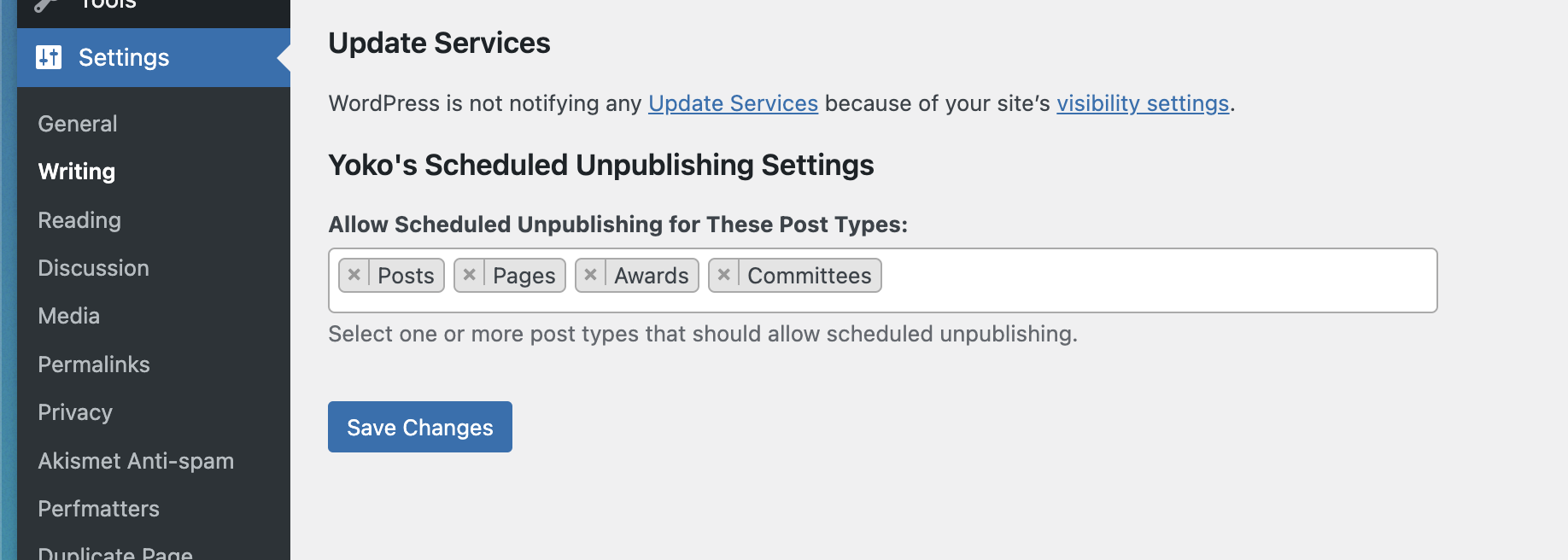
The same setting in its section on a live site.
Block editor
Classic editor
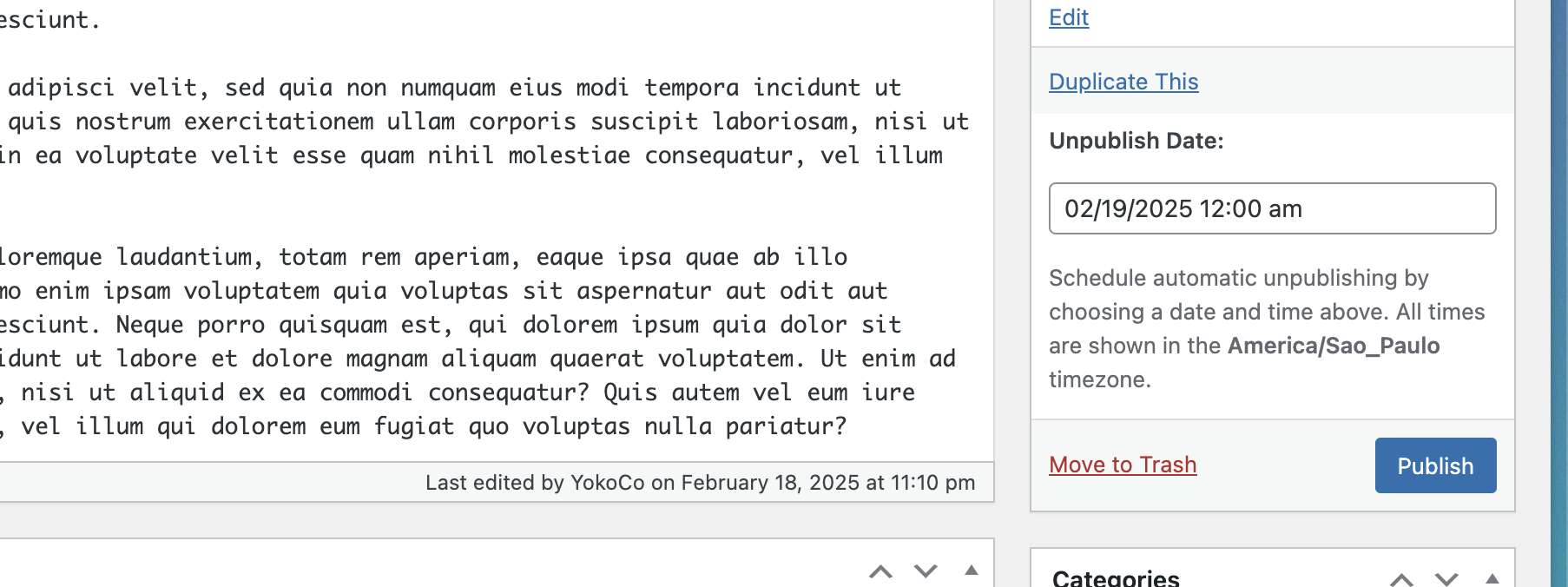
The original capture, on a live site in the America/Sao_Paulo timezone. The helper text names whichever timezone the site is set to.
Both editors
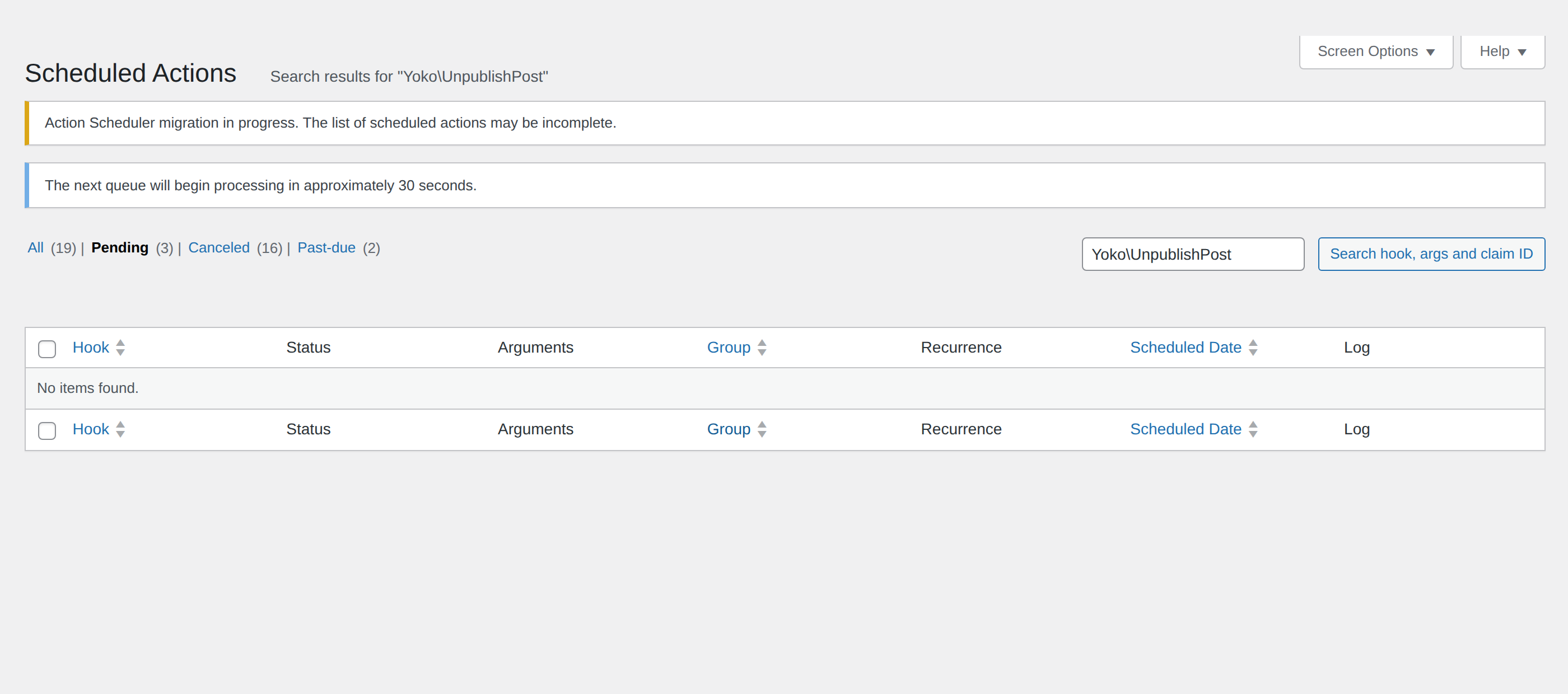
Tools > Scheduled Actions. One Yoko\UnpublishPost per post, carrying the post
ID and the attempt counter, due at the stored GMT instant — whichever editor set
it.