Custom PDF Viewer
Yoko Core ships with a custom in-page PDF viewer that is an implementation of the Mozilla PDF reader project. Using a custom in-page PDF viewer has a few advantages:
- PDF Gating - It allows us to gate PDFs in a way we couldn't before because when a user accesses the PDF, we actually load a page template with the JS PDF viewer embedded on the page instead of making the user just download the document and letting the browser open it. This means that we can run logic upstream from the page template that determines whether the current user should have access to this page or not the same way we do with other WordPress posts.
- PDF Search Deeplinking - We can actually deep link to a search in the PDF to make it easier for the user to find the content they were looking for.
- Extensibility - This viewer is extensible and configurable, so we can add other functionality in the future including the ability to edit the PDF.
In order for the PDF viewer to render, you must link to the attachment post permalink, NOT the PDF file link. To make this easier, most function that would normally render the PDF file link has been filtered to return the attachment permalink instead, but it is still possible to accidentally copy and PDF file link.
How to Activate Custom PDF Viewer
The PDF viewer can be activated in two different places:
- Settings -> Media - The native WordPress Media page now has options to turn on and manage this feature for all PDF media types.
- "PDF Viewer Options" Metabox - Each PDF media item has a PDF Viewer Options metabox that lets you use this viewer ad-hoc, on a case-by-case basis instead of turning it on for all PDF media posts on the site.
"PDF Viewer Options" Metabox
The PDF Viewer Options metabox allows using the PDF Viewer functionality ad-hoc on a case-by-case basis instead of across the entire website.
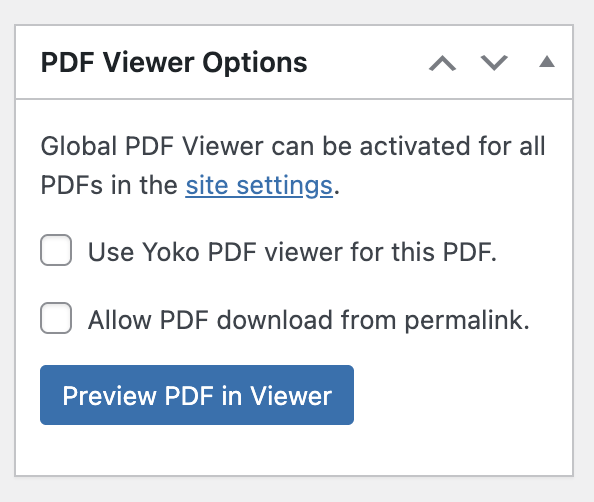
- Use Yoko PDF viewer for this PDF - Choosing this option activates the PDF viewer for just this PDF media item. Turning this option on will also reveal the Content Protection metabox so that the PDF can be gated.
- Allow PDF download from permalink - Choosing this option will allow for the PDF to be downloaded from the permalink of the attachment post. This option is only available if #1 is not checked.
- Allow search engines to index PDF - This option adds the PDF content to the JSONLD of the "Access Denied" page so that search engines can index the content while still blocking the PDF from public access.
- Force PDF download (does not render in browser) - When enabled, the PDF will be forced to download to the user's computer instead of rendering in the browser. This ensures users work from a local file copy rather than filling out forms in the browser viewer. This option is only available when the PDF viewer is enabled (#1 is checked) and respects all content gating restrictions.
- Protect the PDF file (block direct file access) - Moves the physical
.pdffile (and its generated preview images) out of the public uploads directory so the direct file URL stops working entirely. The file is then served exclusively through a gated streaming endpoint. See Protecting the PDF File Itself. This option is only available when the PDF viewer is enabled (#1 is checked). - "Preview PDF in Viewer" Button - This will allow you to preview what the PDF will look like in the in-page PDF viewer. The preview button (and the
?preview=1query flag behind it) only works for logged-in users who can edit posts — for everyone else the flag is ignored, so it cannot be used to bypass gating.
PDF Attachment Permalink
There are several ways to get the attachment post permalink.
Getting the Attachment Post Permalink from the Media Library
- The permalink under the attachment post title.

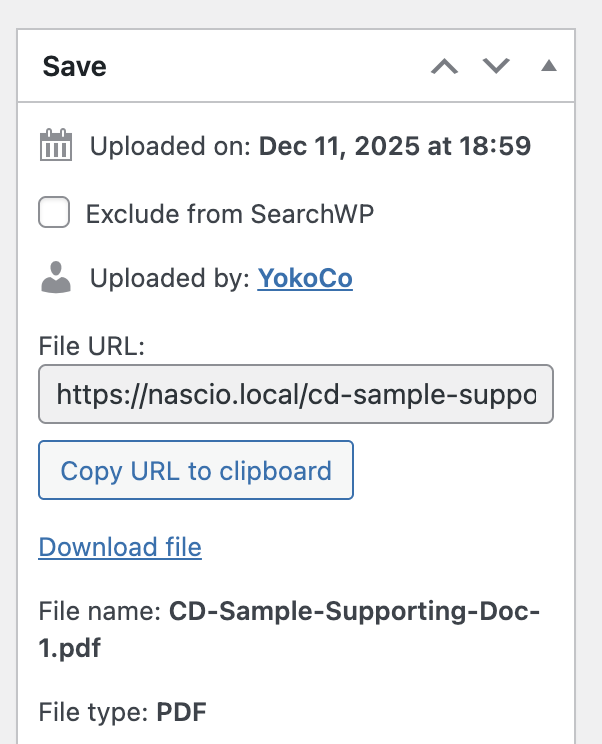
- The "Copy URL to Clipboard" button in the "Save" meta box.
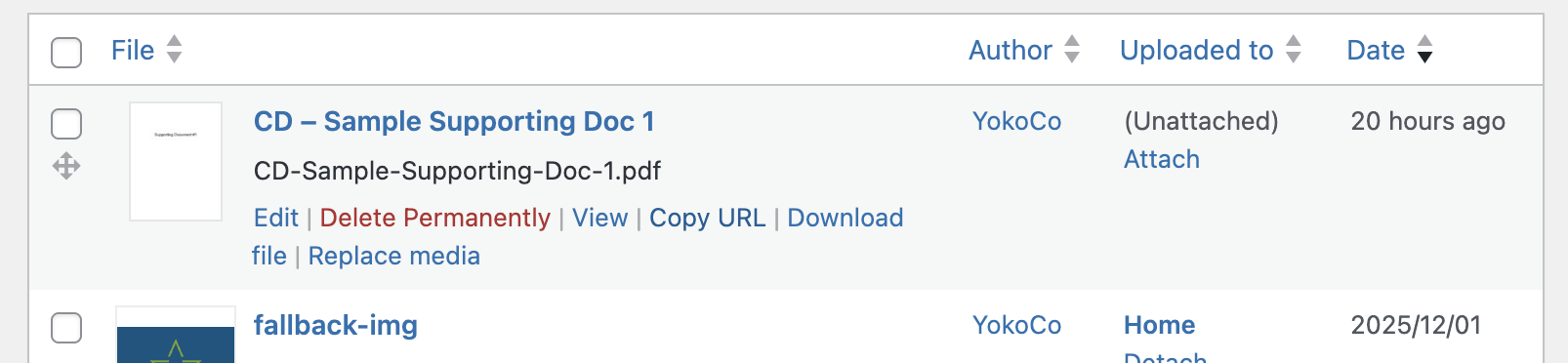
- "Copy URL" or "View" quick link on the Media Library page.
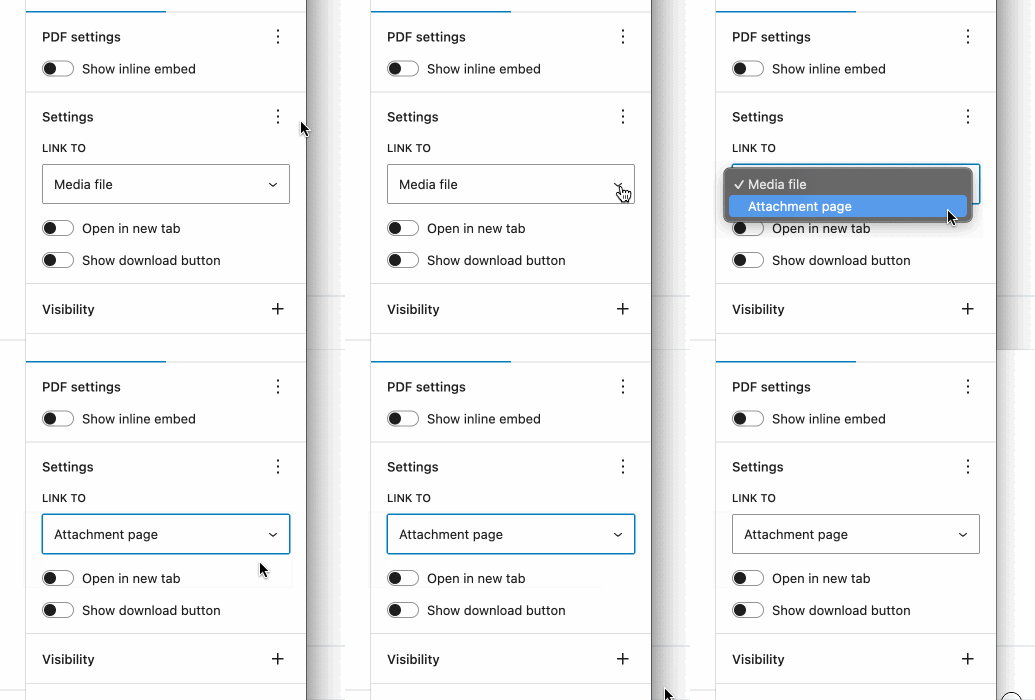
- The Gutenberg File Block Link To setting.
Prepopulate Search
The PDF Viewer search can be prepopulated by adding #search=[SEARCH QUERY] to the end of the PDF attachment media post's permalink.
Auto Print via Hash
The PDF Viewer now supports triggering the browser print dialog from the URL hash.
When a print hash is present, the viewer waits for the PDF to finish loading before initiating the print dialog.
Append one of the following hash values to the PDF attachment permalink:
#print#print=true#print=1#print=yes
You can combine this with other supported hash parameters:
#page=2&print=true#zoom=page-width&print=true#search=invoice&print=true
Example:
https://example.com/my-pdf-attachment/#print=true
Most browsers only allow window.print() when opened from a direct user action (for example, clicking a link or button). If opened programmatically, the print dialog may be blocked.
Auto Save (Download) via Hash
The PDF Viewer also supports triggering Save/Download from the URL hash.
Append one of the following hash values to the PDF attachment permalink:
#save#save=true#save=1#save=yes
You can combine this with other supported hash parameters:
#page=2&save=true#search=invoice&save=true#zoom=page-width&save=true
Example:
https://example.com/my-pdf-attachment/#save=true
Force Download Feature
The Force Download feature allows you to configure PDFs to automatically download to the user's computer instead of rendering in the browser. This is particularly useful when:
- Users need to fill out PDF forms locally rather than in the browser
- You want to ensure users work from a saved copy of the document
- Forms or interactive elements in the PDF work better in desktop PDF readers
How Force Download Works
When enabled, the Force Download option:
- Respects Content Gating - All content protection and access restrictions are checked first, before the download is initiated
- Uses the Attachment Permalink - The download is triggered when accessing the PDF's attachment post permalink (not the direct file URL)
- Prevents Browser Rendering - The PDF file is sent with headers that force the browser to download rather than display the file
- Preserves Original Filename - The downloaded file retains its original filename
Enabling Force Download
To enable Force Download for a specific PDF:
- Navigate to Media Library and edit the PDF attachment
- In the PDF Viewer Options metabox, check "Use Yoko PDF viewer for this PDF"
- Check "Force PDF download (does not render in browser)"
- Click Update to save your changes
Once enabled, any user accessing the PDF's attachment permalink will automatically receive a download prompt instead of seeing the PDF rendered in their browser.
Force Download works seamlessly with content gating. If a PDF is gated and a user doesn't have access, they will see the access denied page. Only users with proper access will receive the download.
Protecting the PDF File Itself
Gating the attachment permalink is only half the story: by default the raw .pdf file still lives in wp-content/uploads/ where the webserver hands it to anyone who knows (or guesses) the direct URL — dev tools, an old shared link, or the REST API would reveal it. The Protect the PDF file option closes that hole.
What happens when you protect a PDF
- The file moves out of the web root. The PDF and its generated preview images move to a
private/yoko-protected-pdfs/directory next to the web root (the layout Kinsta provides natively; on Local it lands in theapp/folder). If that location isn't writable, a.htaccess-denieduploads/yoko-protected/directory is used as a fallback — note the fallback is only effective on Apache, so prefer the private directory (adjustable with theyoko_pdf_protected_dirfilter) on Nginx hosts. - The viewer switches to a gated stream. The in-page viewer receives a short-lived signed URL (HMAC, one-hour expiry by default — filter:
yoko_pdf_stream_url_ttl) to a streaming endpoint that re-runs the sameyoko_pdf_viewer_can_viewcheck before sending any bytes. A URL copied out of dev tools dies when the signature expires, and even a fresh URL only streams for users who pass the gate. - WordPress keeps working.
get_attached_file()andwp_get_attachment_url()are filtered, so text extraction, Force Download, and deletes all resolve the protected location transparently. Anything that would print the (now dead) file URL prints the gated attachment permalink instead.
Related hardening (applies to all gated PDFs, protected or not)
- REST API: gated PDFs no longer expose their extracted text (
content),description,source_url, or per-size file URLs on/wp-json/wp/v2/mediato visitors who fail the access check. Editors keep the full payload. - Blurred teaser image: the "Access Denied" page background now uses a genuinely down-sampled
-pdf-blurred.jpgteaser generated server-side, instead of CSS-blurring the full-resolution first-page preview (whose sharp original was publicly fetchable). The teaser is generated automatically in the background when a viewer-enabled PDF is saved.
WP-CLI
wp yoko pdf_protection status              # every PDF: viewer / gating / protection state
wp yoko pdf_protection status --id=123
wp yoko pdf_protection protect --id=123
wp yoko pdf_protection unprotect --id=123
Unchecking the protect option (or disabling the viewer for the PDF) moves the file back into the public uploads path where it is directly accessible again. The two states are meant to be toggled from the metabox or WP-CLI only — never move the files by hand, since WordPress tracks the protected location in post meta (_yoko_pdf_protected_path).
Adding PDF Viewer links in Block Themes and Pages
When linking to the PDF from a block theme, it is extremely important that the "File Block" is configured to link to the Attachment page and not the Media file.